

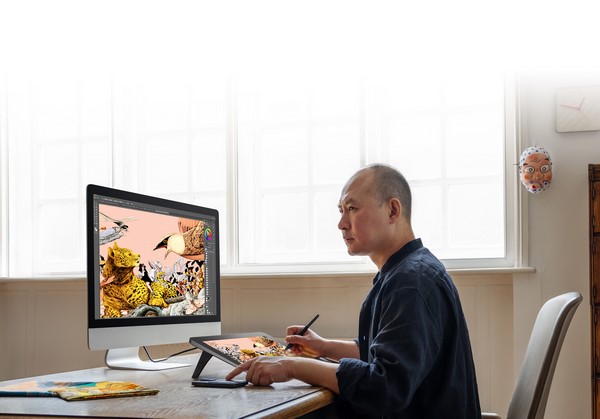
In 2026, digital art has evolved beyond a subculture vocation to an elevated, professional employment practice for industries including graphic novels and game design, animation and concept artists. A drawing tablet is the cornerstone of any aspiring digital artist’s toolbox — but with so many choices on the market, how do you know which one to buy for your work? This guide delves into what matters most when choosing a tablet, highlights important features to consider, and showcases several excellent XPPen drawing tablet options across different categories.
Why the Right Drawing Tablet Matters
Whether you are an amateur who wants to sketch daily, or a pro illustrator working client commission project, the type of tablet you choose affects your creative output. A tablet affects both how comfortably you can draw and how accurately your marks are translated into digital form.
Here are some important things to take into account when selecting a drawing tablet:
- Display Quality – Your creative canvas is what you see. Receiving a quality display with accurate color reproduction allows you to trust your work across platforms.
- Pen Performance – Pressure sensitivity, tilt recognition, and latency define how natural and responsive the drawing experience feels.
- Workflow Compatibility – Regardless of whether the tablet is standalone or companion (with computer requirement), it needs to be able to gel seamlessly with creation software like PS, Clip Studio Paint, Illustrator, or Krita.
- Portability vs. Power – The size and design of the tablet affect its portability. Some artists prioritize on-the-go creation, while others prefer a large, stable work surface.
- Ease of Use – Setup, shortcuts, multitouch control, and stylus ergonomics play a part in how pleasurable it is to draw for long periods.
Knowing these factors will help you differentiate merely good tablets from those that truly elevate your craft.
Tablet Types: How to Choose the Right One for You
Before we dive into particular models, let’s first understand the general categories of drawing tablets:
Pen Display Tablets
These tablets don’t include a built-in screen. You’re drawing on the tablet surface, looking at your computer screen. They’re typically more inexpensive and portable, but can feel less natural initially.
Graphics Tablets (Non-Display)
These tablets don’t have a built-in screen. You draw on the tablet surface while watching your computer display. They’re generally more affordable and portable but can feel less natural at first.
Standalone (Android) Drawing Tablets
These are powered by operating systems, such as Android, and do not need to be connected to a computer. They entice creatives who favor mobility and the chance to draw from anywhere.
Each category has developed for the better in 2026, with something to suit beginner artists through to students and professionals.
What to Look for in the Best Tablet for Drawing
Here’s a breakdown of important features that distinguish outstanding tablets:
Display Specifications
- Resolution & Size: Look for high-resolution screens (Full HD or better) with sufficient workspace.
- Color Accuracy: Panels with wide color gamut coverage (such as Adobe RGB and sRGB) bring your art to life and make color-critical work more reliable.
- Anti-Glare & Touch: Anti-glare screen minimizes eyes fatigue, and multi-touch helps with a variety of gestures.
Stylus Performance
- Pressure Levels: Higher pressure sensitivity (e.g., 16,384 levels) allows for more delicate lines and shading.
- Tilt Recognition: Tilt support enables you to shade with the same feel as real brushes and pencils.
- Battery-Free Stylus: A battery-free pen eliminates charging hassles and often feels lighter and more balanced.
Connectivity
- Make sure it will work with your main operating system (Windows, macOS, Android, ChromeOS or Linux).
- Tablets that support multiple connection options (USB-C, HDMI, touch) offer flexibility.
XPPen Drawing Tablet Options Worth Considering
XPPen keeps on ramping up its creative hardware offerings, providing great options for artists of any level. Below is a comparison of several popular XPPen models suitable for different creative workflows.
XPPen Tablet Comparison Table
| Model | Type | Screen / Area | Resolution / Pressure | Key Features |
| Artist 24 (FHD) | Pen Display | 23.8″ Screen | 1920×1080 / 8,192 | Large drawing area, tilt support |
| Deco 01 V3 | Graphics Tablet | 10″ × 6.25″ Work Area | 5080 LPI / 16,384 | Battery-free pen, customizable keys |
| Deco Pro (Gen 2) | Graphics Tablet | Up to 15″ × 9″ Work Area | 5080 LPI / 16,000 | Bluetooth & wired, smart stylus |
| Deco Fun L | Graphics Tablet | 10″ × 6.2″ Work Area | — / High sensitivity | Beginner-friendly budget option |
| Magic Drawing Pad | Standalone | 12.2″ Android | 2160×1440 / 16,384 | Portable Android tablet with pen |
Highlights of XPPen Tablet Categories
Pen Displays – Immersive Drawing Surface
XPPen Artist 24 (FHD)
The XPPen Artist 24 is a great pick for artists who want a large, full-featured screen and roomy drawing area. Featuring a generous 23.8-inch display and bright 1080p resolution, it’ll give you plenty of room to create intricate work, whether you spend your time painting landscapes or animating frames. Its stylus offers precise control with tilt support, enhancing expressiveness.
Pen displays like this are often considered the best tablet for drawing when you want a direct, responsive interface without feeling disconnected from your canvas.
Graphics Tablets – Affordable and Portable
XPPen Deco 01 V3
For creators on a tighter budget or those who prefer a classic graphics tablet surface, the Deco 01 V3 delivers powerful performance. It’s got a larger working area and battery-free stylus with 16,384 levels of pressure sensitivity – the sweet spot for precision and value when it comes to illustrators starting off in digital workflows.
XPPen Deco Pro (Gen 2)
If you want something with more advanced capabilities, the Deco Pro (Gen 2) series comes with smart stylus technology and tilt recognition in multiple sizes. Artists who value wireless flexibility and smooth, expressive lines will appreciate this model.
XPPen Deco Fun L
At the entry level, the Deco Fun L brings responsive drawing to beginners or casual users at an accessible price — making it a go-to choice for first-time digital artists.
Standalone Solutions – Draw Anywhere
XPPen Magic Drawing Pad
For artists who want freedom from a constant computer connection, the Magic Drawing Pad offers standalone drawing capability with Android support. Its high-resolution screen and battery-free pen make it an excellent choice for sketching in cafés, parks, or while traveling — ideal for creators who prefer a self-contained digital canvas.
Tips for Choosing the Best Tablet for Drawing in 2026
- Decide How You Will Use It – If drawing will be your primary use and you’re going to be working primarily at a desk, a pen display might be the better fit. If you prefer mobility or are just starting out, a graphics tablet or standalone device may suit you better.
- Match Your Software – Ensure the tablet works seamlessly with your creative programs, be they Adobe Suite apps, Clip Studio, or open-source alternatives.
- Consider Long-Term Needs – What begins as a hobby might become more than that. A slight leap in specs can keep you from outgrowing your tablet down the line.
Final Thoughts
Determining the best drawing tablet in 2026 depends on how you work, where you create and what tools feel right for your hands. Ranging from professional display tablets to affordable mobile graphics tablets, there is an XPPen drawing tablet suitable for any artist or designer who appreciates quality and powerful design.
By understanding the features that matter most and where different types of tablets best fit into your creative workflow, you can make a confident decision when selecting the tools that will increase productivity, improve skill development and drive your artistic journey in 2026—and well beyond.